· 11 min read
ForkLift for Windows? Cross-Platform File Managers Compared
There is no ForkLift for Windows. Here are the file managers that run on both Mac and PC, compared on price, dual pane and built-in cloud drives.
ReadTwo panes, Spaces and your clouds and servers in one window, with Explorer's shortcuts. Windows 10 and 11, native on x64 and ARM64.
Version 1.0.0-Beta.3 · Free, with no account, for local files · Updates itself
Other versions and system requirements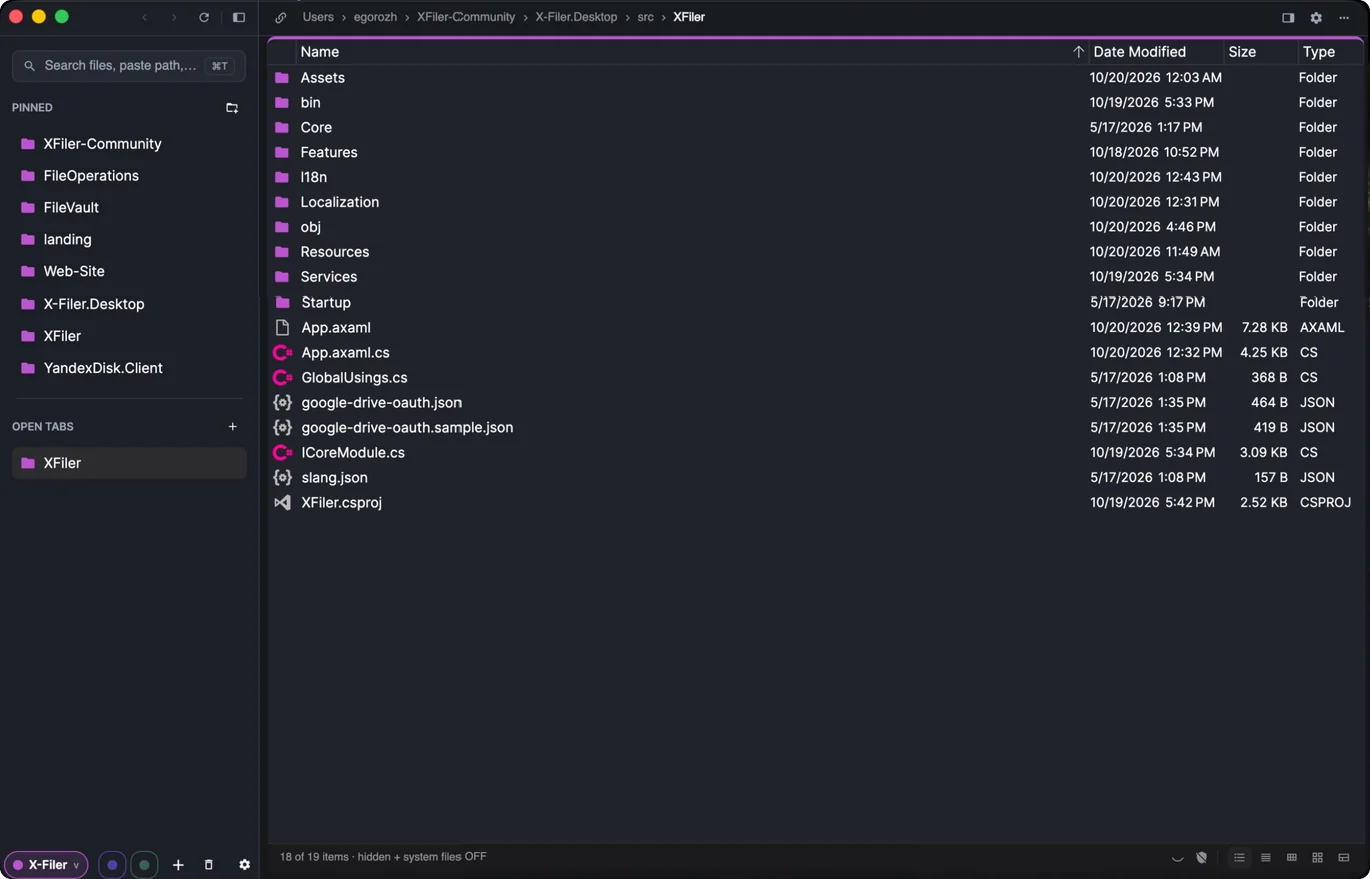
X-Filer is a modern file manager for Windows 11 and Windows 10, and it is our product. It keeps File Explorer's keyboard shortcuts and adds what Explorer does not have: two panes in one window, Spaces with their own pinned folders and tabs, a Space-bar preview, and Google Drive, OneDrive, Dropbox, Yandex Disk, SFTP, WebDAV and S3 in the sidebar without sync clients. There are native builds for x64 and ARM64, it installs for your user without admin rights, and the same app runs on macOS and Linux.
Windows 11 gave Explorer tabs, and for many people that is enough. These are the gaps that make people look for an alternative:
| You want | In File Explorer | In X-Filer |
|---|---|---|
| Two folders side by side | Tabs, or two windows snapped together | Split view in one window |
| Separate contexts for work and personal | One Quick access list | Spaces, each with its own pinned folders, open tabs and colour |
| Google Drive | Google's Drive for desktop client | Built in, sign in through the browser |
| OneDrive and Dropbox | The OneDrive app that comes with Windows, Dropbox's own app | Built in, sign in through the browser |
| Yandex Disk | The Yandex Disk app, which needs Yandex 360 since June 2026 | Built in, works without Yandex 360 (checked by us in October 2026) |
| SFTP and S3 | Not built in | Built in, next to your disks |
| A quick look inside a file | The preview pane | Space opens a preview, the arrow keys walk the folder |
| The same app on a Mac | Windows only | X-Filer for macOS 14+ |
Click the split button or choose Open beside on a pinned folder or tab, and a second pane opens next to the first; in the launcher (Ctrl+T), Alt+Enter does the same.
Drag files across: within one disk they move, between disks, clouds and servers they copy, and Ctrl forces a copy. Name clashes get Replace, Save Both, Skip or Cancel, once for a whole batch if you like, and long operations show progress with a Cancel button. See split view and copy, move, rename, delete.
On Windows, X-Filer uses Explorer's keys: Enter opens, F2 renames, Delete moves to the Recycle Bin, Ctrl+Shift+N makes a folder, Alt+Enter shows Properties, Ctrl+Z undoes a move, a rename or a trip to the Recycle Bin, Alt+← and Alt+→ go back and forward, Ctrl+L or Alt+D lets you type a path, and the mouse side buttons work too.
X-Filer lives next to Explorer, not instead of it. Drag and drop and copy and paste work in both directions, Show in Explorer reveals an item, Open With shows the system's dialog, and Open in Terminal opens a console in the folder.
A Space is a separate workspace with its own pinned folders, open tabs and accent colour, so client work never spills into personal files. Open tabs can close themselves after inactivity; pinned folders stay. How this compares with other workspace file managers is in File manager workspaces; the setup is in the Spaces guide.
Google Drive, OneDrive, Dropbox and Yandex Disk sign in through your browser and open as folders, with nothing synced to your disk. Servers and storage connect the same way: SFTP with a password or SSH key, FTP and FTPS, WebDAV for Nextcloud or Synology, S3-compatible buckets, SMB network folders, and the files of your WSL distributions. Copy between any two of them in split view.
Other things worth knowing: batch rename with regex and a preview, zip, 7z, rar and tar archives opening as read-only folders, search by name or file contents, and Open in Editor for VS Code, Cursor, Rider and the other editors you have installed. If you run a project with Claude Code, X-Filer also shows what the agent changed.
X-Filer is before version 1.0. It has no function-key bar and no plugins, it does not compare or sync folders, and clouds open inside the app rather than as a drive letter in Explorer, with no offline access. If you also use a Mac and wonder what the Mac-only apps offer, see ForkLift for Windows and Transmit for Windows.
For daily file work, yes: browsing, two panes, copying, renaming, previews and clouds. It runs alongside Explorer rather than replacing it in the system, and the two share drag and drop and the clipboard.
Yes. There is a native ARM64 build next to the x64 one, for Windows 10 and 11.
Yes. X-Filer supports 64-bit Windows 10 and Windows 11.
The Windows build is not code-signed yet. Click More info, then Run anyway. X-Filer installs for your user and needs no admin rights.
Yes, for local files: no ads, no account, free forever. Cloud drives and servers need an X-Filer account: the Free plan includes one, Pro has no limit, and a new account starts with 30 days of Pro, no card — see the pricing page.
Show two folders side by side in X-Filer, copy and move files between them, and close the second pane.
Separate workspaces in X-Filer, each with its own pinned folders, open tabs and colour — create, switch, rename and delete them.
File operations in X-Filer — create, copy and paste, drag and drop, conflicts, undo, Open With, Open in Editor, Get Info and Finder tags.
There is no ForkLift for Windows. Here are the file managers that run on both Mac and PC, compared on price, dual pane and built-in cloud drives.
ReadTransmit is Mac only. WinSCP, Cyberduck, FileZilla, Total Commander, RaiDrive and X-Filer compared as Transmit alternatives for Windows.
ReadWhy tab bars fail with dozens of folders, and how Arc-style Spaces, pinned folders and self-closing tabs keep projects apart in a file manager.
ReadVersion 1.0.0-Beta.3 · Free, with no account, for local files · Updates itself
Other versions and system requirements