
Spaces
Separate workspaces in X-Filer, each with its own pinned folders, open tabs and colour — create, switch, rename and delete them.
A Space is a separate workspace: its own pinned folders, its own open tabs and its own accent colour. Keep one for personal files, one for work and one for a project, and switch between them without the tabs of one getting in the way of the other.
Switch Spaces
The current Space is the coloured button at the bottom of the sidebar; the other Spaces are the dots next to it. Click a dot to switch, or click the current Space's button to open the list with each Space's pins and open tabs.
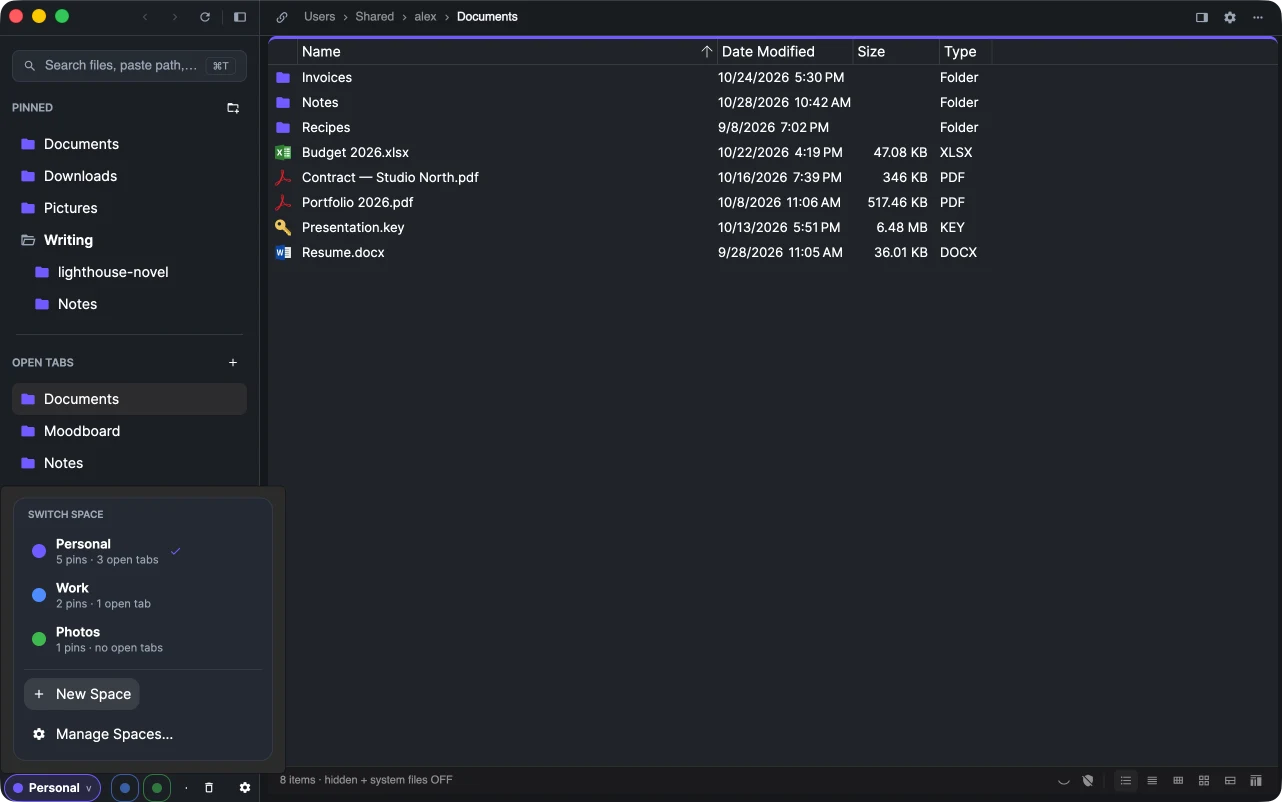
On macOS the Spaces menu lists every Space too, with ⌃1 … ⌃9 for the first nine.
Create a Space
Choose New Space in the switcher, the + next to it, or Spaces → New Space… on macOS. Give it a name and pick an accent colour — folder icons, the active pane frame and the highlights take that colour while you are in the Space.
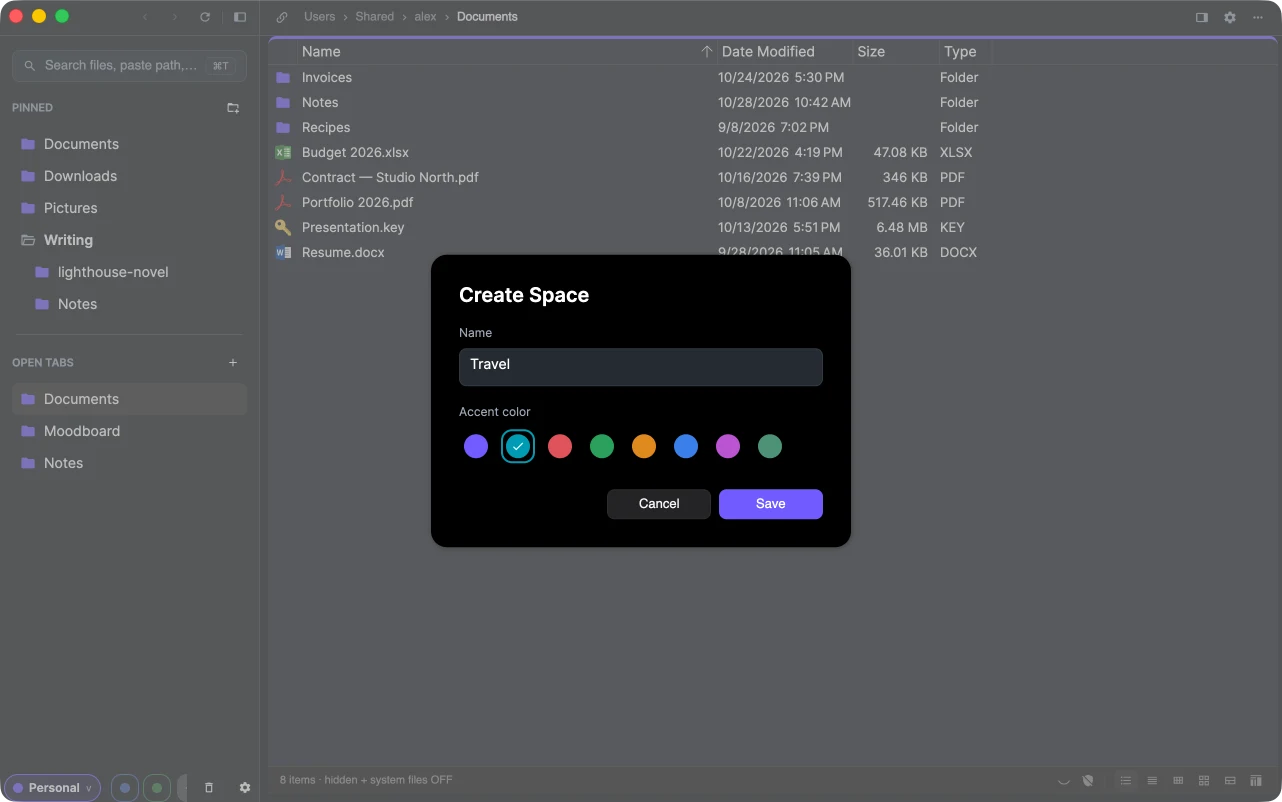
A new Space starts empty; pin the folders you need for it.
Manage Spaces
Manage Spaces… in the switcher opens Settings → Spaces: every Space with the number of its pins and open tabs, the Manage button to rename it or change its colour, and Delete. Deleting a Space closes its open tabs; files and folders on disk are not touched.
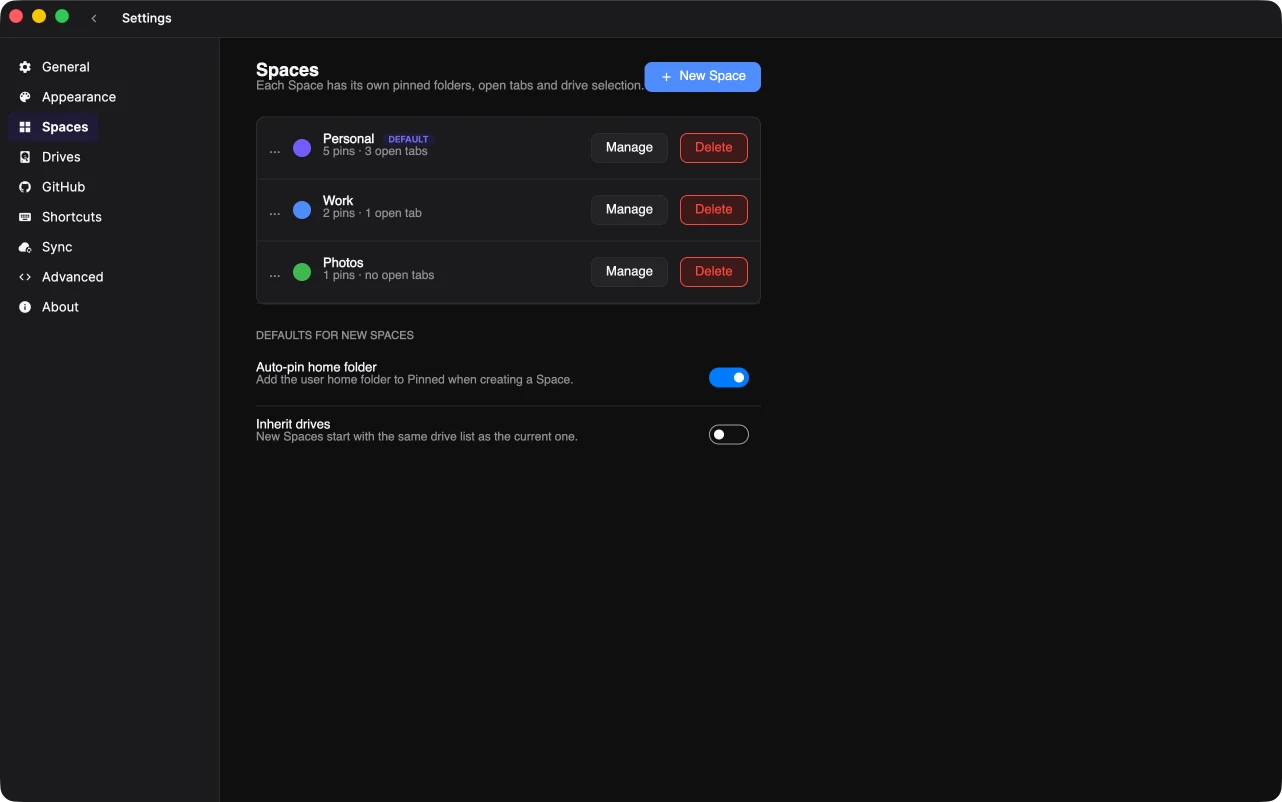
The New Space button at the top of the page creates one as well.