
Batch rename
Rename many files at once in X-Filer — replace text with case and regular expressions, or number them with a name template, with a live preview.
Select several files or folders and choose Rename… in the context menu (or press ↩ / F2). A dialog shows every old name next to its new one, updated as you type.
Replace text
Replace text finds a piece of each name and replaces it:
- Find and Replace with — leave Replace empty to delete the piece;
- Match case — tell "Scan" from "scan";
- Regular expression —
\d+for any number,^IMG_for a prefix; groups can be reused in the replacement as$1.
Name and number
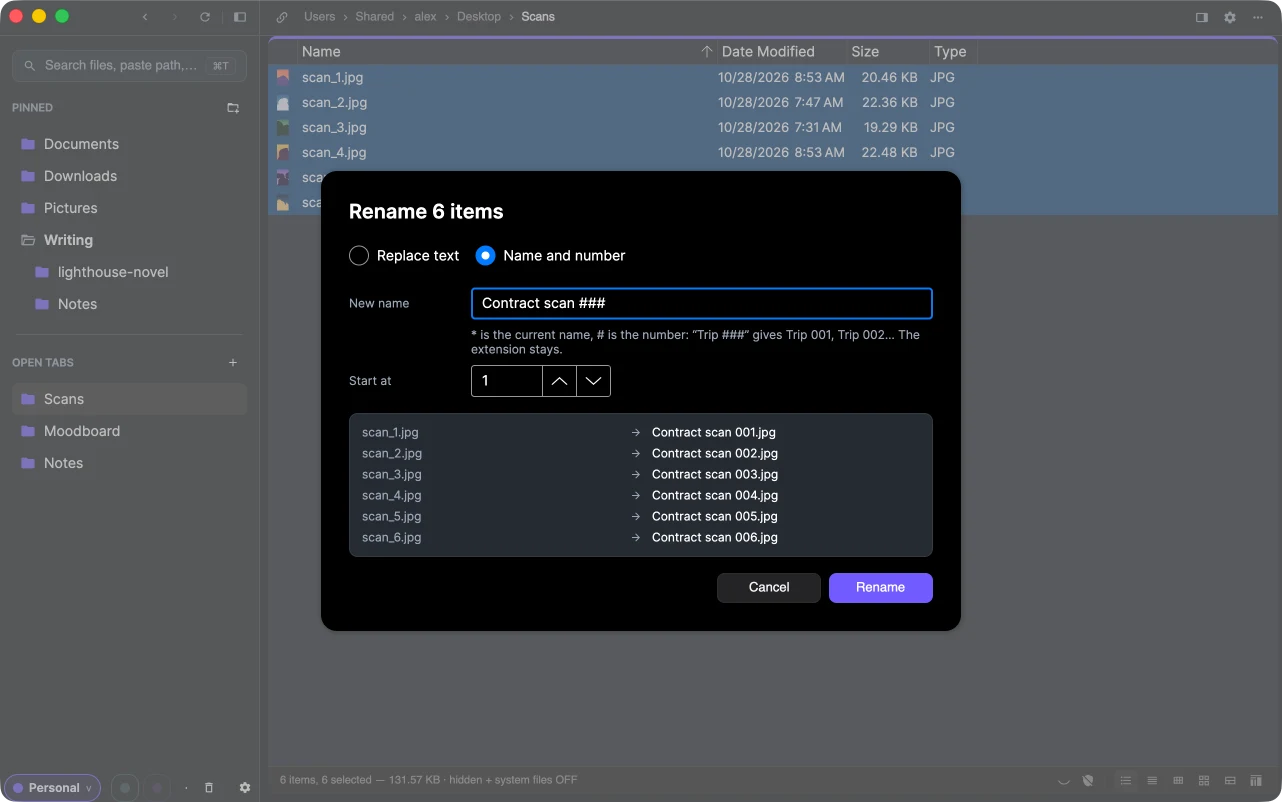
Name and number builds every name from a template:
*stands for the current name;#is the number, padded to as many digits as there are hashes:Trip ###gives Trip 001, Trip 002…;- Start at sets the first number.
The extension stays as it was, so photo.jpg and scan.png keep .jpg and .png.
Checks before renaming
Rename stays off while any new name is a problem, and the preview says which: an empty name, a character names can't contain, two items getting the same name, or a name already taken by another item in the folder (hidden files count).
Names that swap places — 1 → 2 while 2 → 3 — are fine: X-Filer renames in a safe order. On a cloud drive a swap has to be done in two steps.
Undo
The whole batch is one step: ⌘Z / Ctrl+Z brings all the old names back.