
Browse folders
Navigate folders in X-Filer, switch between table, icons and tiles, sort, show hidden files, see thumbnails and folder sizes.
Move around
- Double-click a folder to open it (⌘↓ or ⌘O on macOS, Enter on Windows).
- Back and Forward: the arrows at the top of the sidebar, ⌘[ ⌘] on macOS, Alt+← Alt+→ on Windows, the side buttons of a mouse, or a three-finger swipe on a Mac trackpad.
- Up to the enclosing folder: ⌘↑ / Alt+↑.
- Click any folder in the path bar to jump there, or press ⌘L / Ctrl+L to type a path.
- On macOS the Go menu opens Home, Desktop, Documents, Downloads, Agent Projects and Trash, and Go to Folder… asks for a path.
The list follows its folder: when another app or an AI agent adds, changes or deletes files, they appear and disappear by themselves. Refresh (⌘R / F5) reads the folder again anyway.
Views
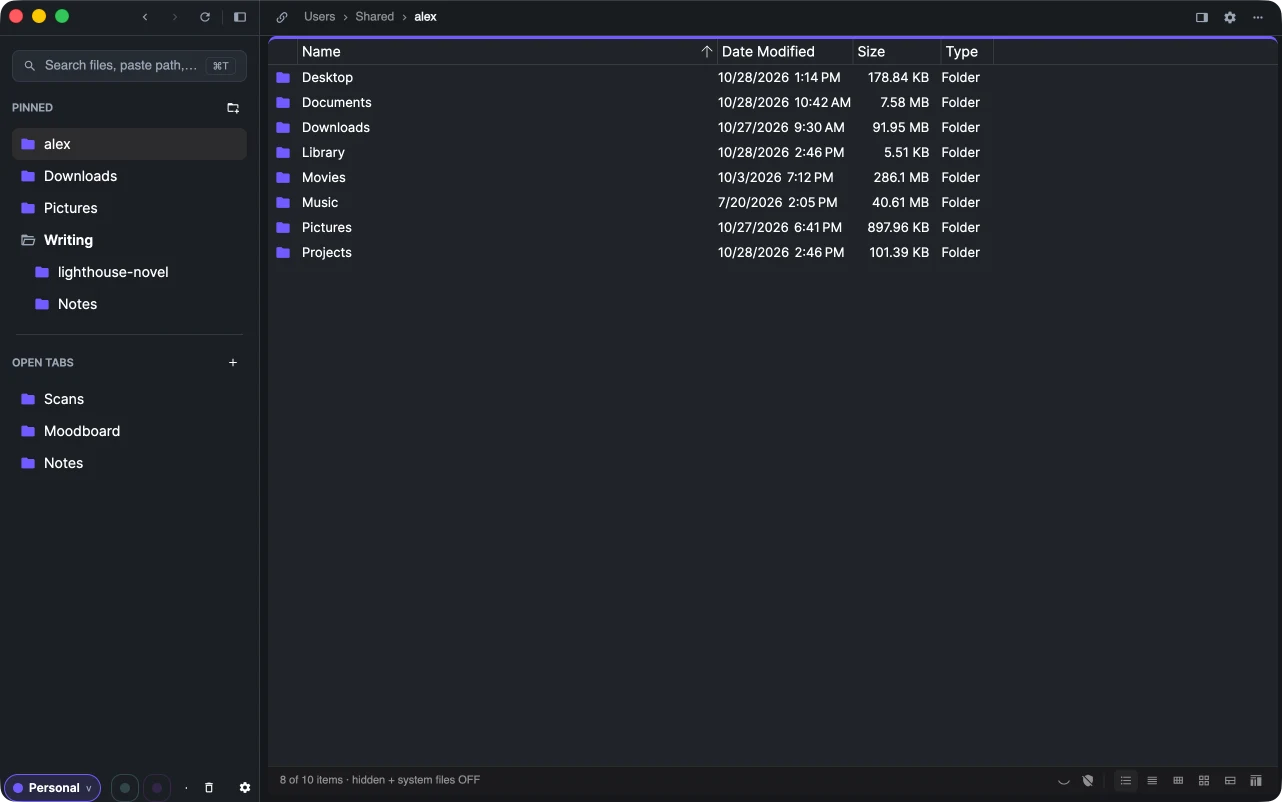
Switch the view with the buttons at the right of the status bar or, on macOS, View → as Icons (⌘1), as List (⌘2), as Size Map (⌘3):
- Table — name, date modified, size and type in columns;
- Content, Small icons, Large icons and Tiles;
- Size map — the folder drawn by what takes the space, see Size map.
The default view for new tabs is in Settings → General → Default view mode.
Thumbnails
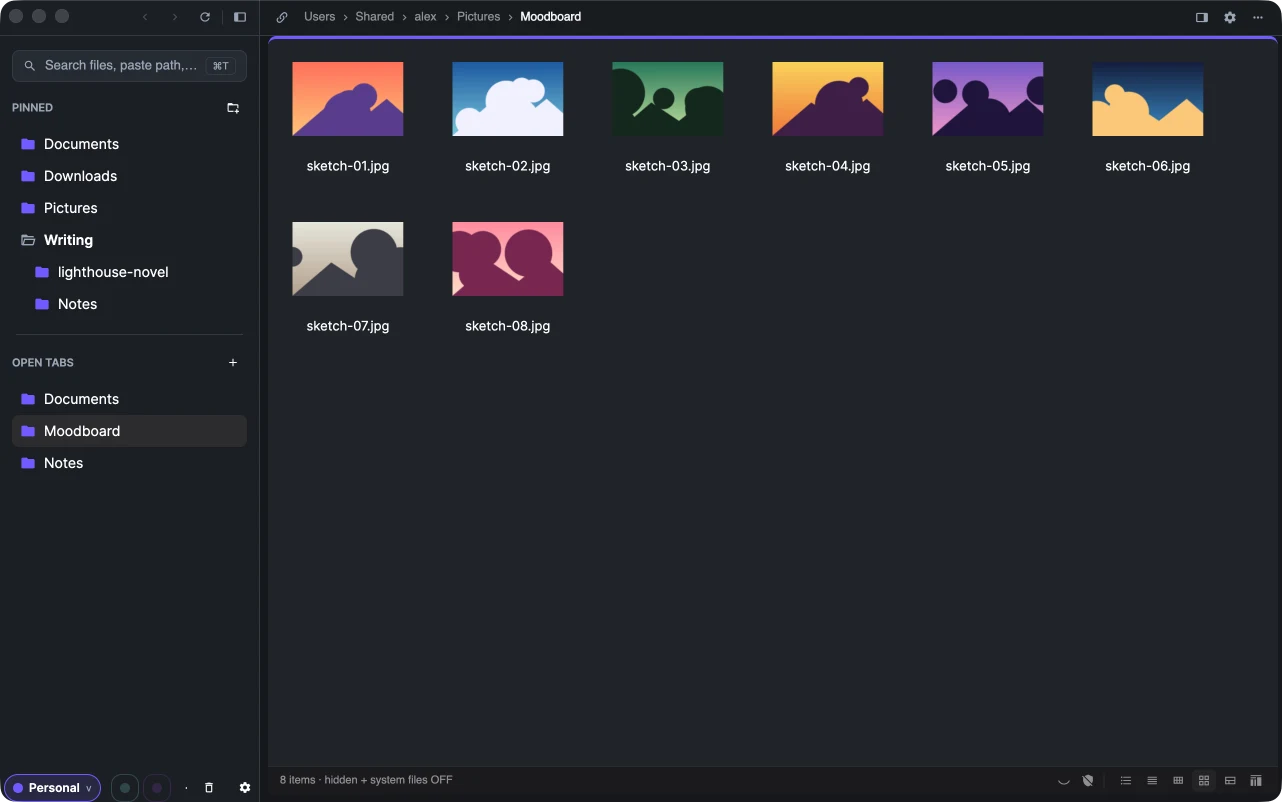
Pictures show themselves instead of a file-type icon, in the tiles and in the table: PNG, JPEG, GIF, BMP, WebP, ICO and SVG, photos turned upright as the camera recorded them. On Google Drive and Yandex Disk the drive's own previews are used — photos, videos and Google Docs — without downloading the files.
Sort
Click a column header in the table to sort by it, click again to reverse. The folder's context menu has Sorting too: by name, date modified, size or type, ascending or descending. Folders always stay on top. The order is remembered after a restart.
Hidden and system files
Click the shield in the status bar to show or hide hidden and system files (names starting with a dot on macOS). The status bar says which is on. The default is in Settings → General → Show hidden files.
Folder sizes
A folder's size is not known until its contents are added up. Turn on Show Folder Sizes — in the View menu on macOS or under View in the folder's context menu: X-Filer walks the folder in the background, the size column shows "…" while it counts and fills in as it goes. A table sorted by size re-sorts itself as the numbers arrive.
The results are remembered for a few minutes, so the subfolders you open next already have their sizes. Sizes are counted for folders on this computer; cloud drives and servers show files' sizes only.