
The X-Filer window
A tour of the X-Filer window — sidebar, path bar, file list, status bar and the macOS menu bar.
X-Filer has no horizontal tab bar. Everything that is open lives in the sidebar on the left, and the rest of the window shows the active tab — a folder, a drive, a project or a settings page.
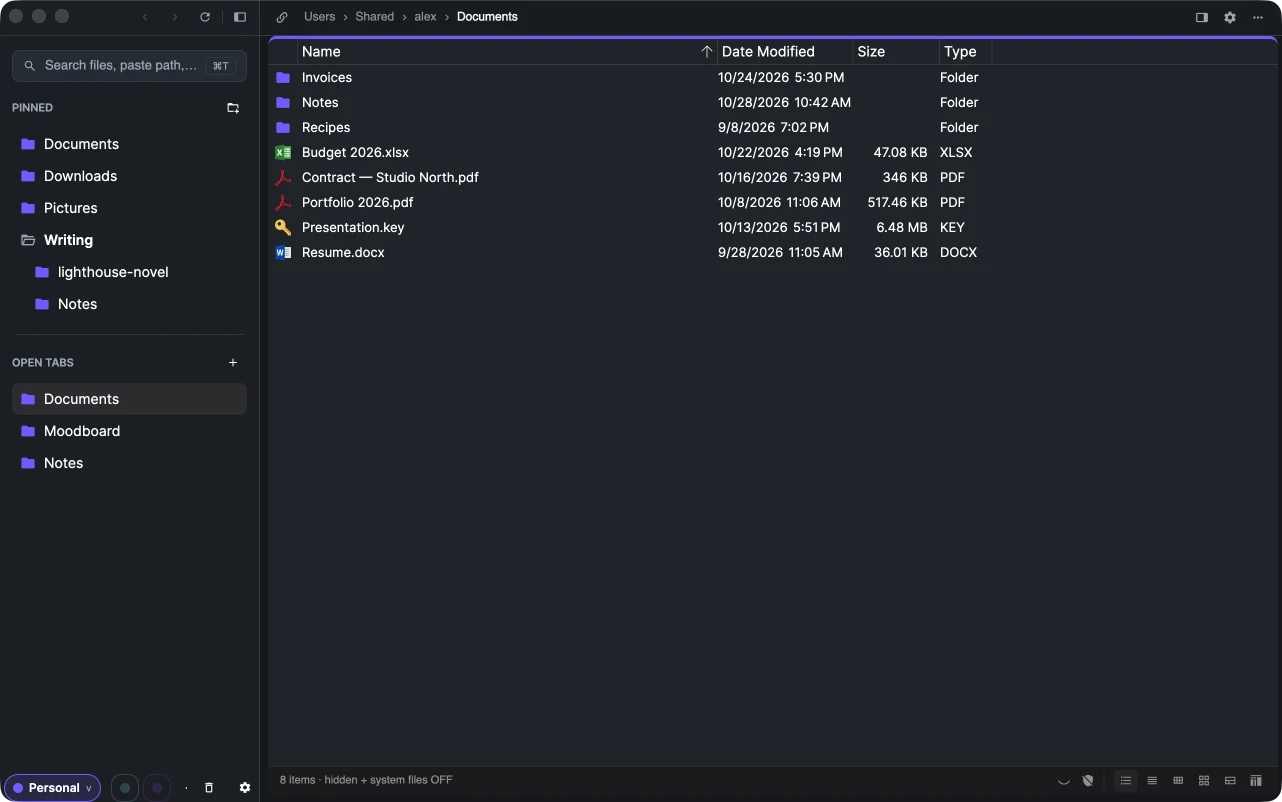
Sidebar
From top to bottom:
- Window buttons — back, forward, refresh and the button that hides the sidebar.
- Search field — opens the launcher: find a pinned folder, an open tab or a drive, or paste a path.
- Pinned — folders, drives and projects you keep at hand. They stay until you unpin them.
- Open tabs — what you are browsing now. Tabs come and go; see Sidebar, pins and tabs.
- Bottom bar — the current Space and the other Spaces as coloured dots, a button for a new Space, the Trash and Settings.
Hide the sidebar with the button at the top or View → Hide Sidebar (⌥⌘S on macOS). While it is hidden, move the pointer to the left edge of the window and it slides out over the content.
Path bar
Above the file list is the path of the current folder, one button per folder: click any of them to go there. Press ⌘L (Ctrl+L or Alt+D on Windows) to type or paste a path instead. On the right are the buttons for split view, Settings and the More menu.
When the folder is in a git repository, a bar under the path shows its version and a Sync button — see Version history with git.
File list
The folder's contents as a table (name, date modified, size, type) or as icons and tiles. Pictures show themselves instead of an icon. Right-click an item for everything you can do with it, or right-click empty space for the folder's own menu: create a folder or a text file, paste, change the view and sorting, open the folder in Terminal or an editor. See Browse folders and Copy, move, rename, delete.
Status bar
At the bottom: how many items the folder has, how many are selected and their total size, whether hidden and system files are shown (click the shield to switch), and buttons for each view — table, content, small and large icons, tiles and the size map.
Menu bar on macOS
On a Mac X-Filer has a full menu bar, like Finder: File, Edit, View, Go, Spaces, Window and Help. Every menu item shows its shortcut; the complete list is in Keyboard shortcuts. On Windows the same actions are in the context menus and on the toolbar buttons.