Search
Find files in X-Filer by name through all subfolders or by the text inside them, on your disks and on cloud drives.
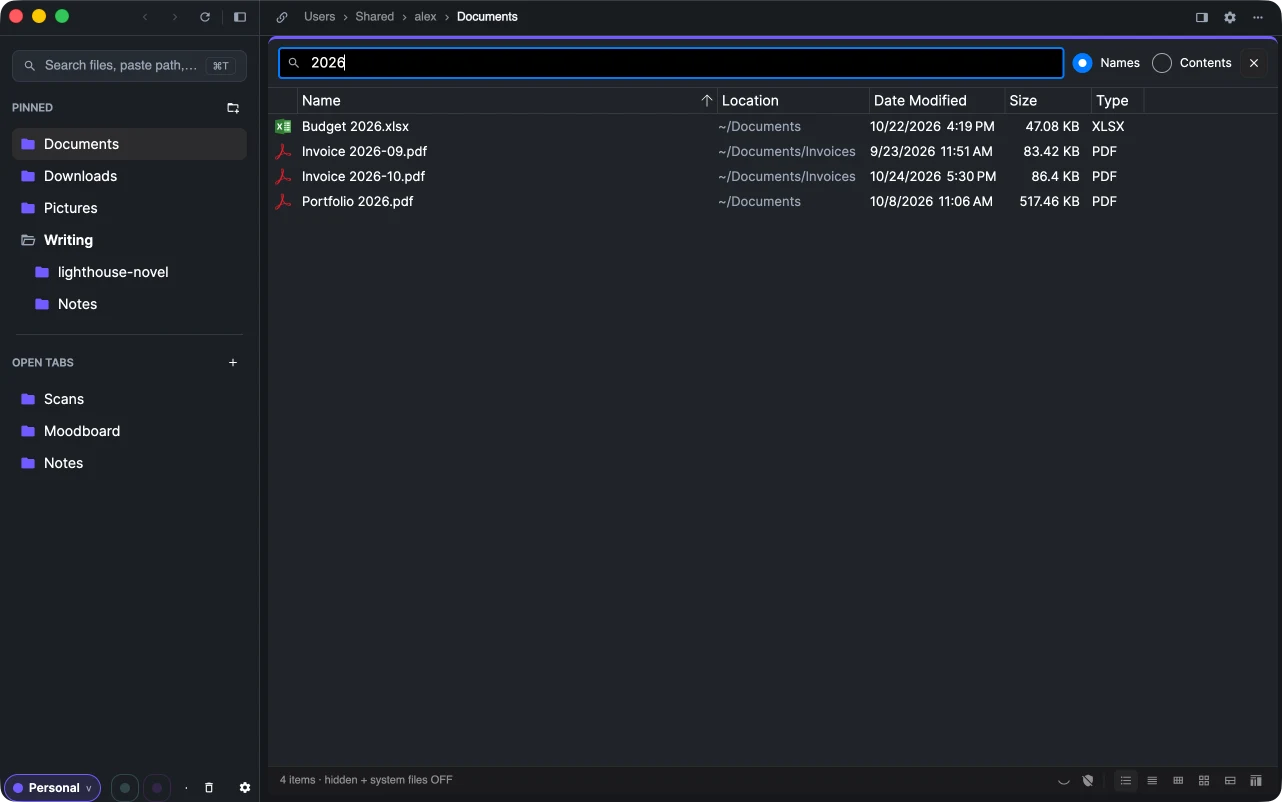
Press ⌘F / Ctrl+F (or Edit → Find on macOS, Find in the folder's menu) to open the search bar above the list. The search starts in the current folder and goes through all its subfolders.
By name
Type part of a name. The results come in as they are found, with a Location column showing where each one is. Open a result, preview it with Space, or act on it as on any file.
By contents
Switch the bar from Names to Contents to find files by the text inside them — at least two characters, ignoring case.
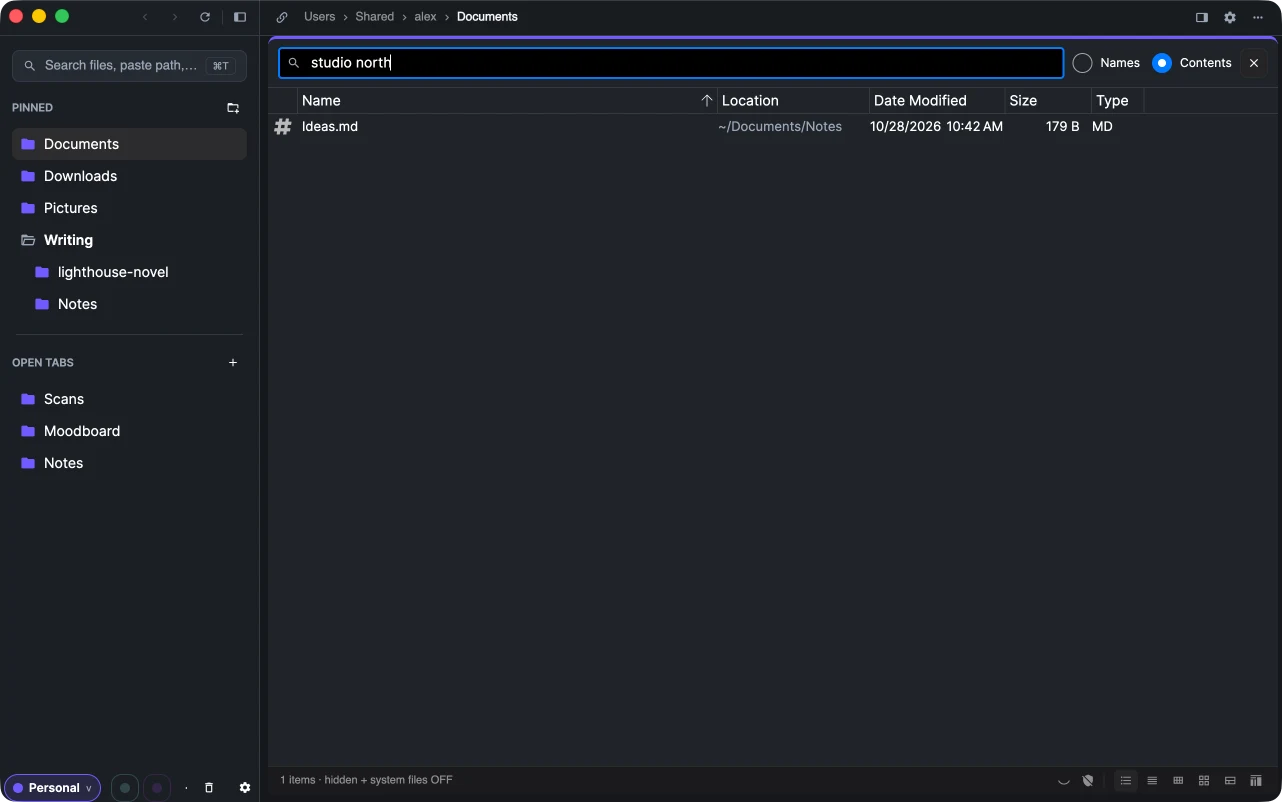
- Text files up to 16 MB are read: notes, Markdown, code, CSV, logs and the like.
- On a Mac Spotlight adds PDFs, Office documents and anything else it has indexed.
.gitfolders,node_modulesand packages are skipped.
Contents search works in folders on this computer.
On cloud drives
On Yandex Disk, Google Drive and S3 the search by name runs on the drive itself and goes through the subfolders below the current one. Mind the drives' own rules: Google Drive matches the beginning of words, and Yandex Disk finds files but not empty folders. On other servers (SFTP, FTP, WebDAV) the bar filters the current folder.
Close the search
Click × at the end of the bar or press esc to go back to the folder.