
Sidebar, pins and tabs
How pinned folders and open tabs work in X-Filer, how to group pins into folders and how old tabs are cleaned up.
The sidebar holds two lists that behave differently, as in the Arc browser: Pinned for places you return to, and Open tabs for what you are looking at right now.
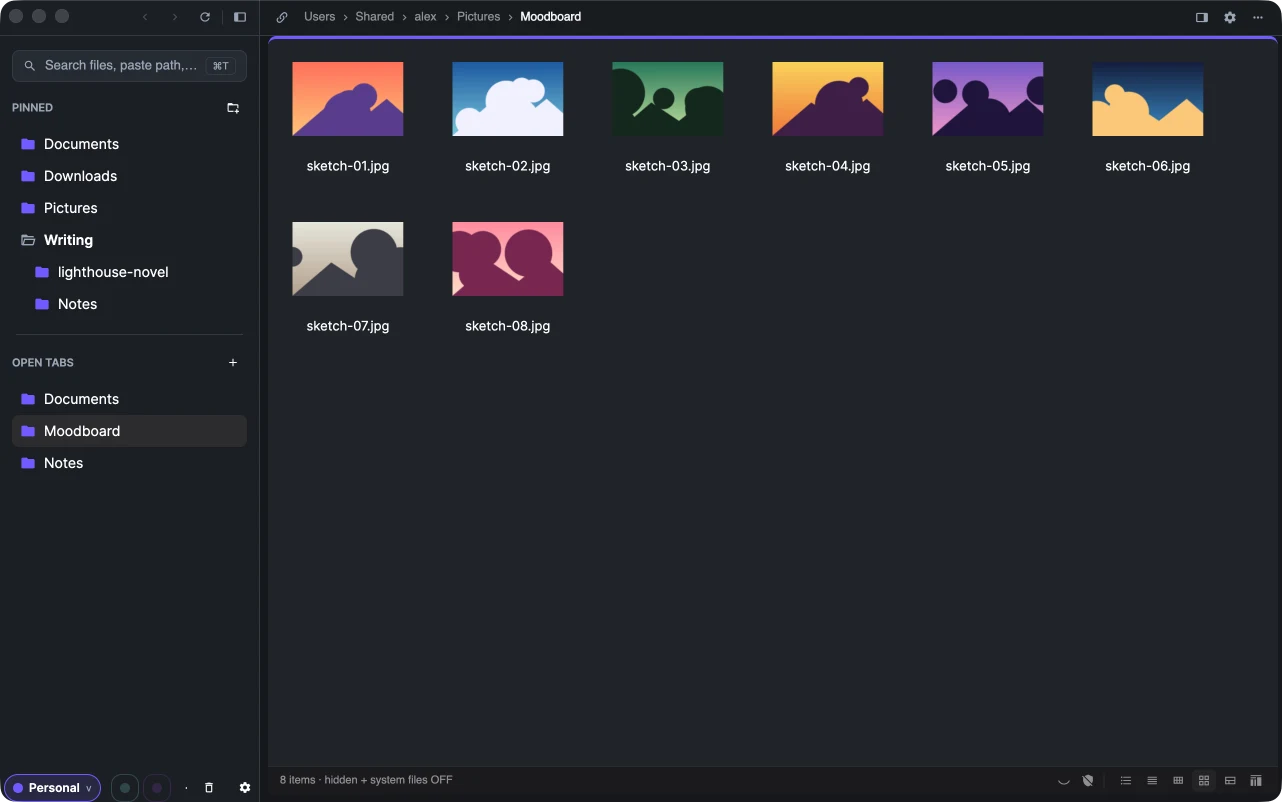
Open tabs
A tab is one browsing session: it remembers its own back and forward history. Open a new tab with the + next to Open tabs or ⌘T / Ctrl+T — the launcher opens to pick where to go.
Right-click a tab for:
- Open beside — show it next to the current tab in split view.
- Pin — move it to the pinned list.
- Duplicate — a second tab at the same place.
- Close tab, Close others.
Two tabs shown side by side appear in the sidebar as one row; right-click it to Separate split view or Close both tabs.
Pinned items
A pin is a permanent bookmark: a folder, a drive, the projects page or a project. To pin something, drag its tab from Open tabs up into Pinned, or right-click the tab and choose Pin. In the launcher the Pin folder link pins a folder too.
Click a pin to open it. If you then walk to another folder, the pin follows you; right-click it and choose Back to pinned location to return. Other commands in the pin's menu:
- Open beside — open it in the other half of the window.
- Rename — give the pin its own name; the folder on disk keeps its name.
- Show in file manager — reveal the folder in Finder or Explorer.
- Close tab — close what the pin has open without unpinning it.
- Remove from pinned.
Pinned groups
Keep related pins together in a group, like a folder in a bookmarks bar. Click the folder button next to Pinned to create a group, or right-click a pin and choose Add to new folder. Drag pins in and out of a group; click the group's name to fold it. A group's menu has New folder inside, Rename and Delete folder, keep tabs — the pins inside move up a level.
When old tabs close
Open tabs are meant to be temporary. With Settings → General → Reopen tabs on launch switched on (the default), X-Filer restores the tabs and split panes of your last session and closes tabs you have not used for 24 hours. Switch it off and open tabs are closed whenever you quit the app. Pinned items always stay.
Each Space has its own sidebar
Pins and open tabs belong to the current Space. Switching Spaces swaps the whole sidebar.