Install and first launch
Download X-Filer for Windows or macOS, open it for the first time and get to your files in a minute.
X-Filer is a file manager for Windows and macOS with an Arc-style workspace: a sidebar instead of a tab bar, Spaces, split view, cloud drives and servers that open like ordinary folders, and a view of projects where an AI agent works.
System requirements
| Windows | macOS | |
|---|---|---|
| Version | Windows 10 or 11 | macOS 12 Monterey or newer |
| Processors | x64 and ARM64 | Apple Silicon and Intel |
| Extra software | none | none |
The installers are self-contained: no .NET runtime or other framework is needed.
Install
- Open the download page — it picks the installer for your system.
- Windows: run the installer; X-Filer opens when it is done and appears in the Start menu.
- macOS: open the downloaded file and move X-Filer to Applications, then start it from Applications or Launchpad.
First launch
X-Filer starts with one Space called Personal. A fresh Space is empty: no pinned folders and no open tabs. The start page offers three ways in:
- Connect a drive — add Yandex Disk, Google Drive, a server or a network folder (see Cloud drives).
- Pin a folder — keep a folder in the sidebar for quick access.
- Open launcher — find a folder, a drive or paste a path (⌘T / Ctrl+T).
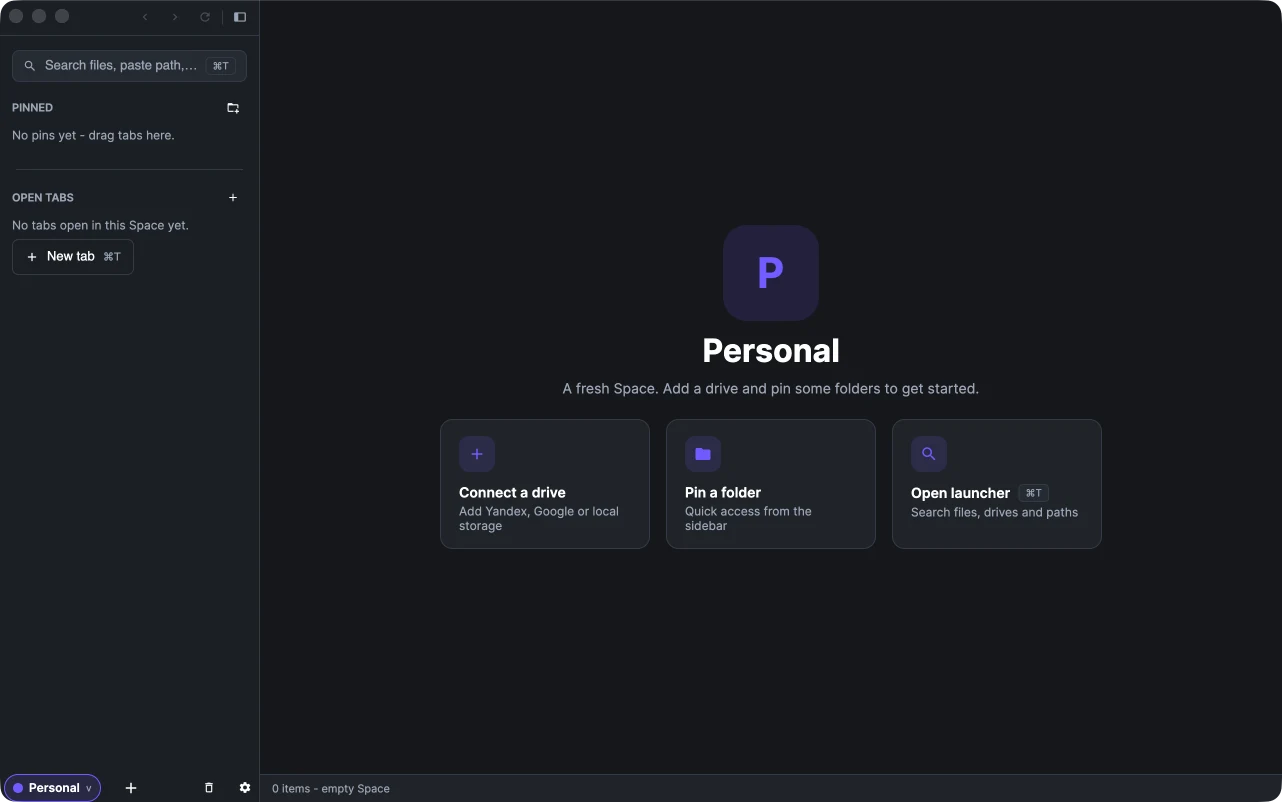
Open your home folder, Documents or Downloads from the launcher and you are browsing. Next, read The X-Filer window for a tour of what is on screen.
Usage statistics — only if you allow
A few seconds after the start a small card in the bottom-right corner asks whether to send anonymous usage statistics and crash reports. It blocks nothing; answer Allow or No thanks whenever you like. Nothing is sent until you allow it, and file names, paths, drive names and accounts are never sent. You can change your answer later in Settings → General → Privacy.
Updates
An installed X-Filer checks for a new version shortly after it starts, downloads it in the background and installs it on the next start. To check by hand open Settings → About and press Check for updates; when a version is downloaded the button turns into Restart to update. On macOS the same command is in the application menu: X-Filer → Check for Updates….
Language and theme
The interface is in English and Russian. By default it follows the system language; change it in Settings → General → Language — the switch takes effect at once, no restart. The theme (System, Light, Dark or Auto — dark from 7 pm to 7 am) is next to it.