
Version history with git
X-Filer keeps versions of any folder with git in plain words — save, sync with GitHub, switch variants, download and publish projects, and hand the hard parts to an AI agent.
X-Filer uses git to keep the history of a folder, but it does not ask you to learn git. A commit is a version, a branch is a variant, pushing and pulling are Send to the cloud and Get the latest. Anything that could lose work — merging, conflicts, rewriting history — X-Filer does not do itself: it turns it into a ready task for your AI agent.
You need git on the computer. On a Mac it comes with the command line tools; if they are missing X-Filer offers to install them. On Windows install Git for Windows.
A folder in git
When a folder is inside a git repository, its tab in the sidebar gets a branch mark, with a dot when something is unsaved or waiting to be sent. Above the file list a bar shows:
- which version you are on — Main version, a Variant "…" or an agent's proposal;
- the state — everything saved and sent, unsaved changes, versions not sent, new versions in the cloud;
- Sync and the ⋯ menu.
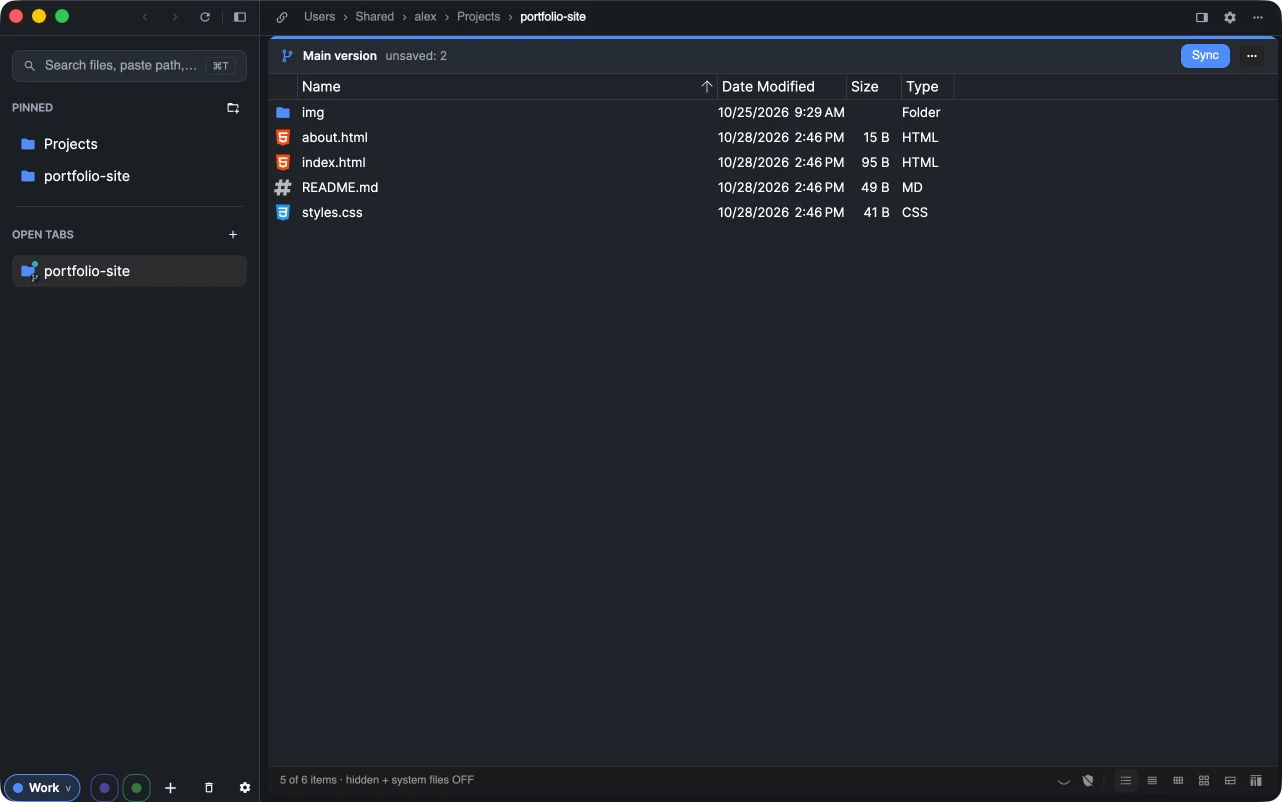
Sync does the three usual steps in one: saves a version of the unsaved changes, gets what is new in the cloud and sends your versions there. The ⋯ menu has Get the latest and Send to the cloud separately, Switch to a variant…, Publish on GitHub… for a folder that is not on GitHub yet, and Open the history when the folder is an agent project.
Variants
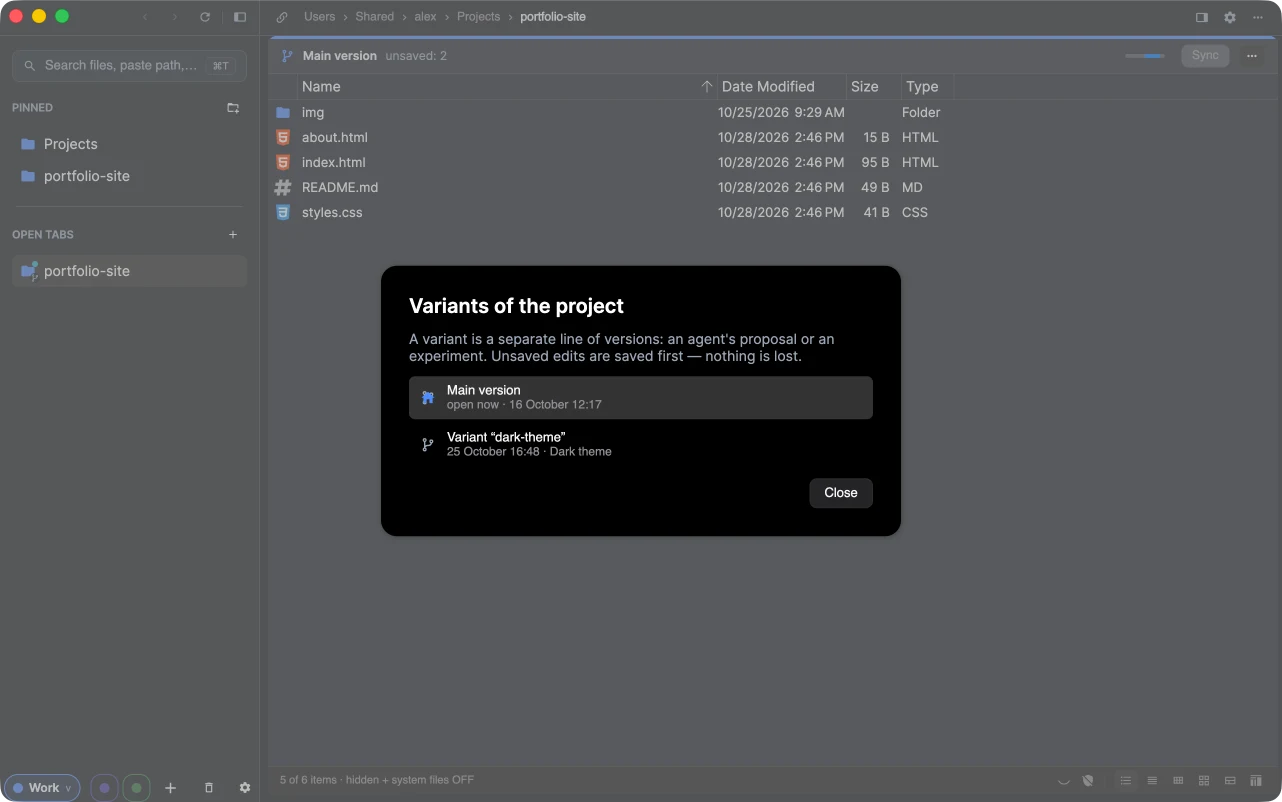
A variant is a separate line of versions: an experiment, or a proposal of a cloud agent. Switch to a variant… lists them — local ones and those only in the cloud — and opens the one you pick. Unsaved edits are saved first, so nothing is lost; Back to the main version returns.
Checks before a version is saved
Before saving, X-Filer looks at the new files:
- files that look like passwords or keys (
.env,*.pem,id_rsa…) — it suggests keeping them on this computer only, which adds them to.gitignore; - files over 50 MB — git and GitHub handle them badly; over 100 MB GitHub refuses them, so nothing is saved until they are dealt with. Ask the agent moves them to Git LFS.
The first time, X-Filer asks whose name and email to sign versions with. Signed in to GitHub, it uses your GitHub name and its private no-reply address.
Turn on version history
For a folder without git, the folder's context menu has Turn on version history. X-Filer creates the repository with a sensible .gitignore and saves the first version. It refuses where history would do harm: a folder that is already inside a repository, a folder synced by a cloud drive client (it breaks git's files), or something too big like your home folder.
Download a project from GitHub
Download from GitHub… — in the folder's context menu and on the Agent projects page — shows your repositories (after signing in to GitHub) or takes a link to any repository, and asks where to put it: ~/Projects by default. Progress is shown as it downloads; Cancel leaves nothing behind.
Publish on GitHub
⋯ → Publish on GitHub… sends a project to a new private repository in three steps:
- Create on GitHub — github.com opens with the repository name filled in; create it empty, without a README.
- Open access — let X-Filer into the new repository on the page that opens.
- X-Filer finds the repository and sends the project.
When git needs a decision: Ask the agent
Some situations need a judgement: the cloud and this computer both have new versions, unsaved edits stand in the way of fresh versions, a GitHub repository already has unrelated history, files must move to LFS, or a proposal should be accepted into the main version. X-Filer changes nothing then. It explains what happened and shows Ask the agent: a task written for Claude Code or Codex, which you can Copy or Open in the agent right away — X-Filer starts it in Terminal with the task. The task always says: don't rewrite history, no force push.
The agent is chosen in Settings → GitHub → Agent for tasks.
Settings → GitHub
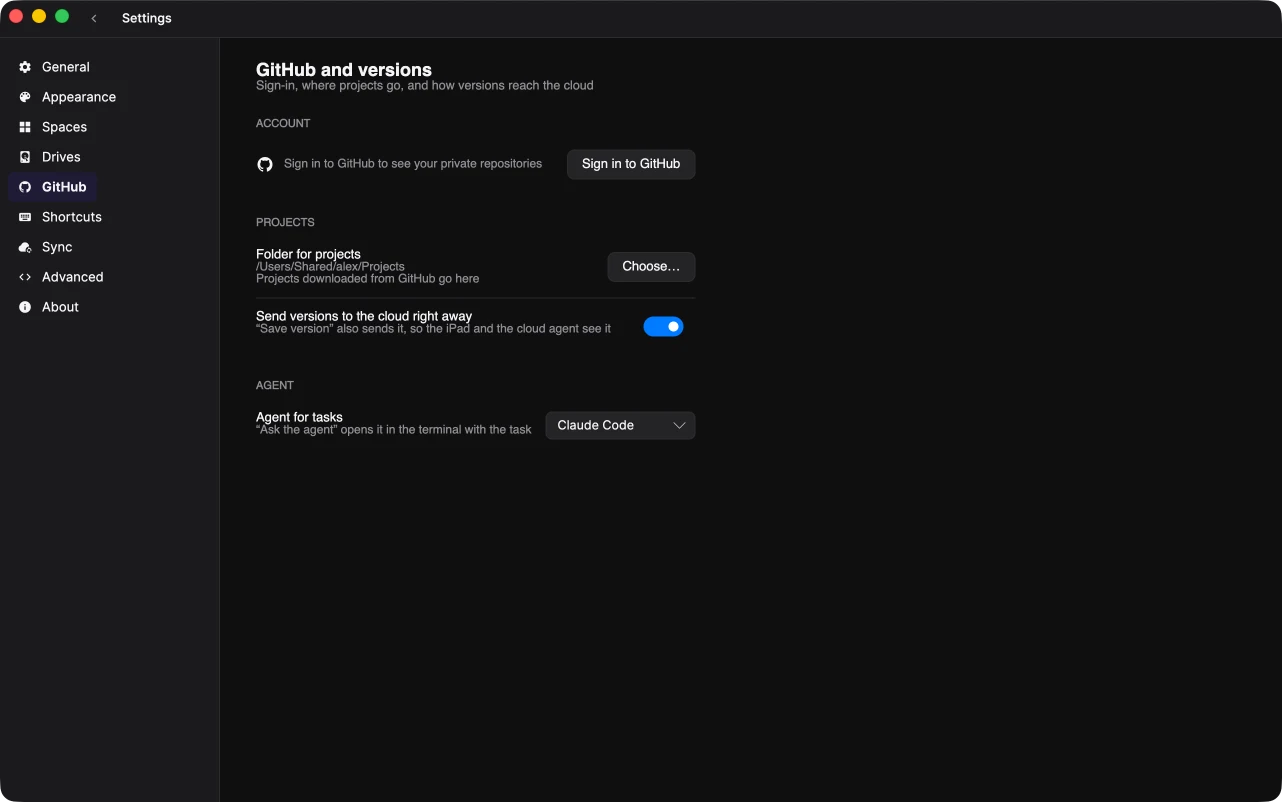
- Account — sign in to GitHub to see your private repositories and send to them.
- Folder for projects — where downloaded projects go.
- Send versions to the cloud right away — on by default: saving a version also sends it, so other devices and the cloud agent see it.
- Agent for tasks — Claude Code or Codex.