Cloud drives
Connect Yandex Disk, Google Drive, OneDrive and Dropbox to X-Filer and browse them like folders — no sync client, previews, search and public links.
In X-Filer a cloud drive is just another drive: you browse it, copy files to and from it, drag and drop, search and preview — without installing the drive's sync client and without filling your disk with copies. Files are read from the cloud when you open them.
Add a drive
Open Add Drive in one of these ways:
- Connect a drive on the start page of an empty Space;
- Connect next to Drives in the launcher;
- Settings → Drives → Connect drive.
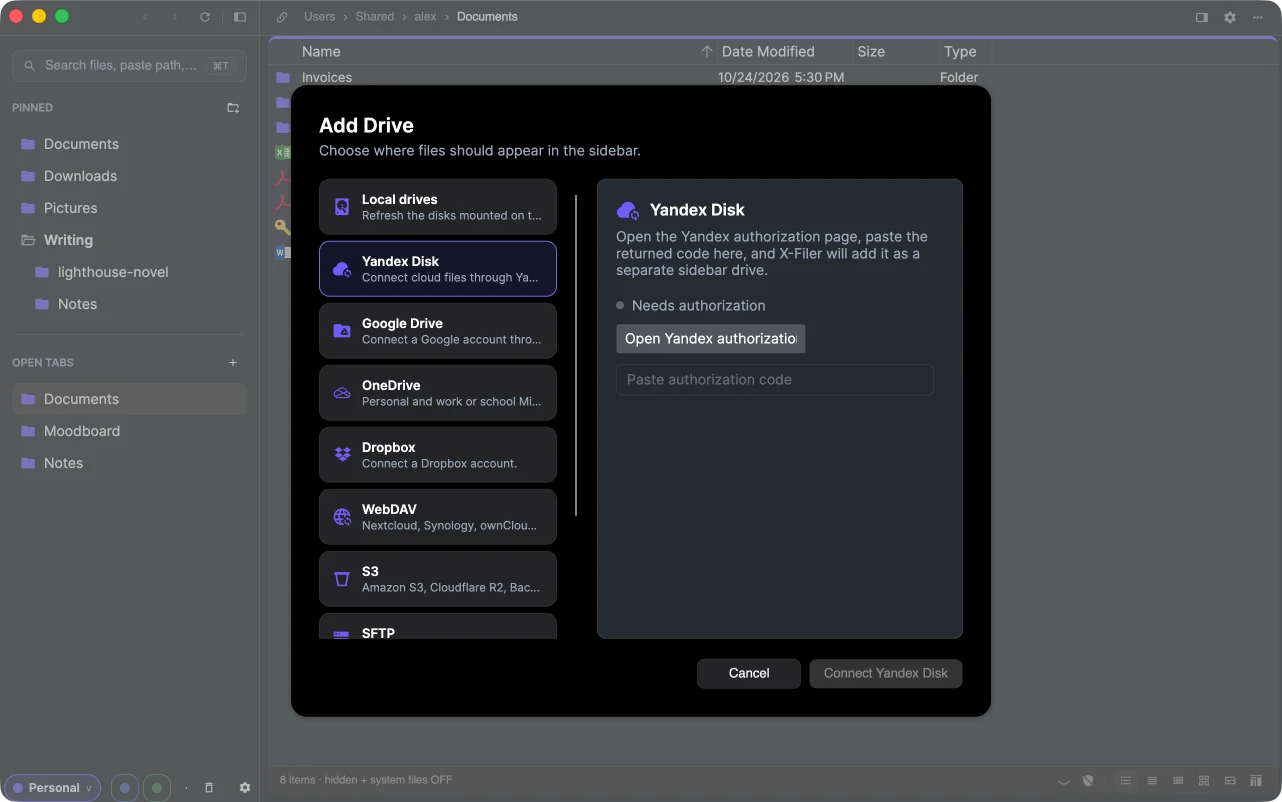
Choose a service on the left; the right side explains what it needs. Once connected, the drive appears in the sidebar by itself.
Yandex Disk
- Choose Yandex Disk and press Open Yandex authorization — the Yandex sign-in page opens in your browser.
- Sign in and allow access; Yandex shows a code.
- Paste the code into the dialog and press Connect Yandex Disk.
You can connect several Yandex accounts; each becomes its own drive.
Google Drive
Choose Google Drive and press Connect Google Drive. Google's sign-in opens in the browser; sign in, allow access and come back — the drive is added.
OneDrive and Dropbox
- OneDrive — personal, work and school Microsoft accounts. Press Sign in with Microsoft and finish in the browser.
- Dropbox — press Open Dropbox sign-in, allow access, paste the code Dropbox shows and press Connect Dropbox.
What you can do on a cloud drive
- Everything from Copy, move, rename, delete, between the cloud and your disks and between two clouds. Deleting on a cloud drive is permanent, so X-Filer asks first.
- Previews: photos, videos and Google Docs show the drive's own thumbnails, without downloading the files.
- Search by name through all subfolders, on the drive itself — see Search.
- Copy Public Link in the context menu of one file or folder creates a share link and copies it — on Yandex Disk, Google Drive, OneDrive and Dropbox.
- Used and free space of the drive shows on its card in the launcher and in Settings → Drives.
Status and reconnecting
Each drive has a status: online, connecting, offline or error. If access expires or is revoked, the drive's tab shows Reconnect required — press Reconnect and sign in again.
Manage connected drives
Settings → Drives lists every drive with its status and space. The ⋯ menu of a drive has Refresh status, Properties and Disconnect. Disconnecting removes the drive and its sign-in from X-Filer; the files in the cloud stay where they are.
Sign-ins are stored in the macOS Keychain or, on Windows, encrypted for your user account — never in plain text in X-Filer's settings file.